How to Monitor Live Traffic with nload

First, we need to download NLoad. We can do that with this command:
APT)
apt-get install nload -yYum)
yum install nload -yAfter downloading NLoad, type ifconfig in the terminal and find your IP address under inet.
Example output:
root@88:~# ifconfig
docker0: flags=4099<UP,BROADCAST,MULTICAST>  mtu 1500
        inet 172.17.0.1  netmask 255.255.0.0  broadcast 172.17.255.255
        ether 02:42:c9:75:3d:c9  txqueuelen 0  (Ethernet)
        RX packets 0  bytes 0 (0.0 B)
        RX errors 0  dropped 0  overruns 0  frame 0
        TX packets 0  bytes 0 (0.0 B)
        TX errors 0  dropped 0 overruns 0  carrier 0  collisions 0

ens160: flags=4163<UP,BROADCAST,RUNNING,MULTICAST>  mtu 1500
        inet 88.209.248.121  netmask 255.255.255.0  broadcast 88.209.248.255
        inet6 fe80::250:56ff:febf:1a62  prefixlen 64  scopeid 0x20<link>
        ether 00:50:56:bf:1a:62  txqueuelen 1000  (Ethernet)
        RX packets 464003050  bytes 45762349064 (45.7 GB)
        RX errors 0  dropped 19848  overruns 0  frame 0
        TX packets 192051603  bytes 117577614791 (117.5 GB)
        TX errors 0  dropped 0 overruns 0  carrier 0  collisions 0
In the example output, ens160 contains our IP address. We will use this for NLoad.
Example of Using Nload:
nload ens160The output after entering this command:
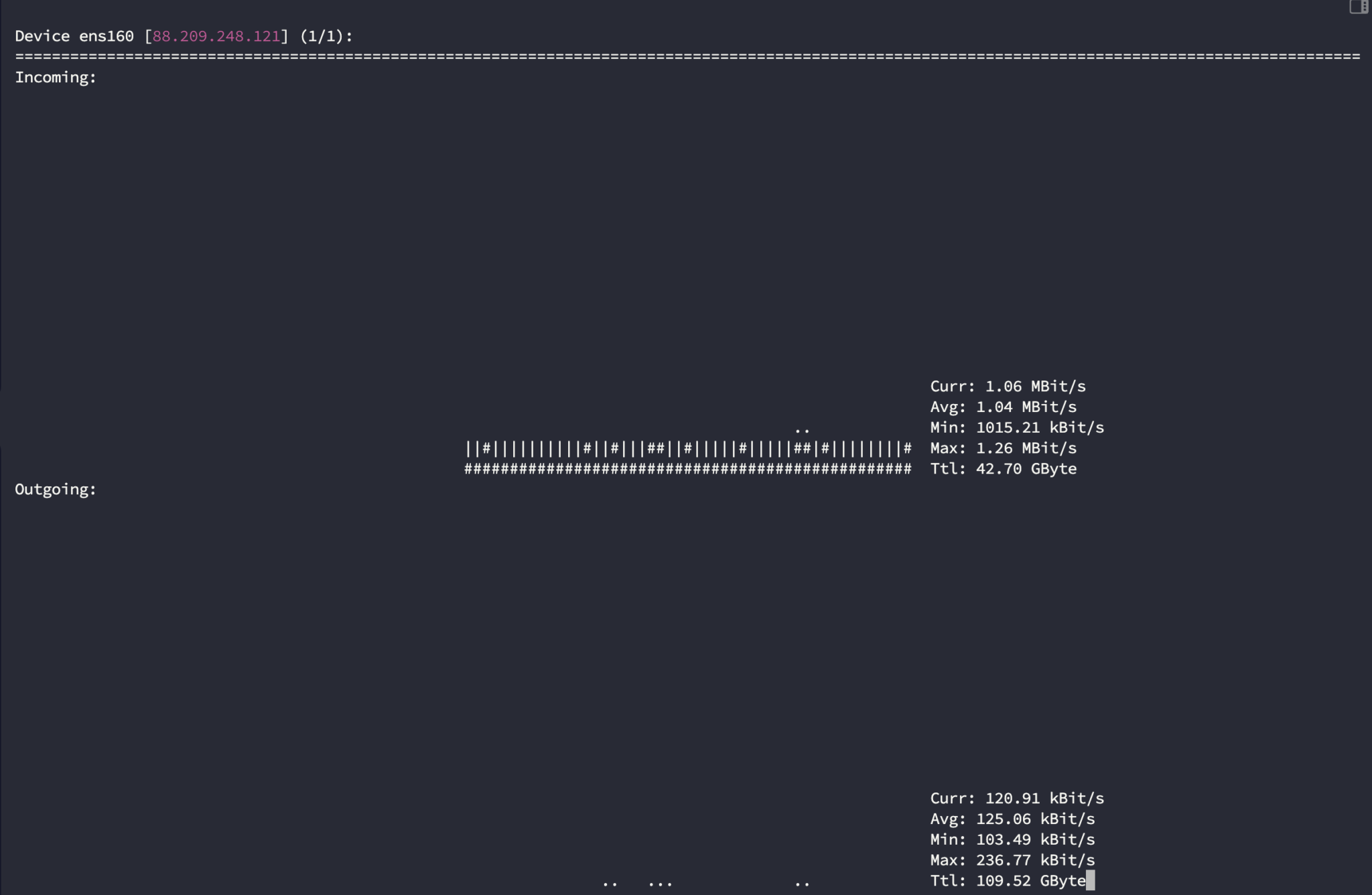
If you followed the steps correctly, you can now monitor your traffic in real time!